2013年6月7日星期五

How to Change a Laptop Keyboard of a ASUS A42

Laptop keyboards are one of the significant parts, used for providing input to the system. We know that keys of the keyboard, either of laptop or desktop, are easily breakable; hence, its extensive use may lead one or more keys to pop out. This will require replacing the keyboard with another one.
Other than this, there could be several reasons for its replacement. If you are a user of Asus laptop and you need to replace your Asus A42 Laptop Keyboard, than here is a guide for you.
Here we have taken Asus A42 and have defined each and every step involved in the replacement of its keyboard. However, keyboard replacement procedure is somehow similar of all models of Asus laptops.
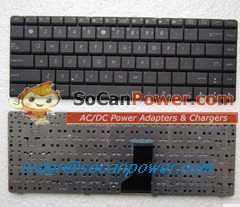
The steps are easy to follow, you don’t need to hire a technician to replace your laptop keyboard; you can do it yourself. Moreover, when you decide to replace the keyboard of your Asus laptop, you can opt to order a new one online as well.
There are a number of online stores that are dealing in Asus parts and claim to have a stock from original manufacturer. Hence, replacing and repairing your Asus laptop parts have become easier.
Read on to learn how to replace a Laptop Keyboard of a Asus A42:
1. Remove Laptop Adapter
Turn off your laptop, unplug the adapter if your laptop is on charge and remove the battery. You will find the battery at the back of your laptop.
2. Remove theBattery
After removing the battery, your next step is to remove two screws, which are in the battery section, basically locking the keyboard bezel.
3. Unscrew your Laptop
Turn your laptop in such a way that the keyboard is now facing you. Now with the help of screw driver, lift the keyboard bezel from the right, cautiously. Once you have lifted it, now keep on removing it by your fingers.
But, you need to be careful, as there is a thing ribbon cable, which is connecting button board to the motherboard. Remember, it should not get disconnected from the motherboard.
After removing the bezel, turn it over, with the cable connected. Now take out the screws, with the help of the screw driver, which are holding the keyboard.
4. Remove Laptop Keyboard
Now you can lift the keyboard. But, wait; the keyboard cannot be removed, as it is connected with a flat ribbon cable to the motherboard. In order to do so, you will have to unlock the connector and the cable will easily come out.
To unlock the connector, you will have to lift the black plastic, which you can see on your Asus A42 and thus, the cable is free and you can remove your Dell Laptop Keyboard.
5. Replace your Laptop Keyboard
Now replace your damaged laptop keyboard with the new one. Fix everything back in the same way, as you detached and finally you are done with the replacement process.


Tips to Protect a Laptop Keyboard

Are you looking for instructions on how to protect a laptop keyboard? If so, this article might be of help. The article shares a few helpful tips and precautions that can help keep a laptop keyboard looking good and operating at its best.

Protecting a Laptop Keyboard

Liquids can be a health hazard for laptop keyboards and can cause irreparable damage to your most valued possession. Although persistently advised to avoid keeping all forms of provisions and beverages at a close proximity to your laptop, some users have a habit of not paying any attention to such crucial information. Depending on the constituents of the proposed fluid a simple spill can become your worst nightmare as your system and keyboard will most likely not function or act like its former self. There are however certain solutionsto protecting that cherished laptop keyboard from being exposed to liquid spills and having other substances fall on it... Buy a laptop keyboard cover (which is covered in the next section of the article).
We are all well aware of the fact that without a keyboard, a laptop is just a screen with lots of words on it. They keyboard allows computerusers to type and move around on the screen. Therefore, the keyboard is an essential part of a good working laptop. To protect a laptop keyboard, the most important thing for computer users to do is, avoid the temptation of eating or drinking around a laptop (see precaution #2). Computer users can prevent liquid spills by ensuring their working space has no liquids that can spill over and on to the keyboard.
Advice: If a liquid spill occurs, immediately shutdown the laptop, unplug it and wipe off any visible spill from the keyboard as well as all other laptop components. Wait for the remaining liquid to dry. If the keyboard is damaged, bring it in for repair. A PC tech may be able to fix what was damaged. If not, another option would be find a compatible replacement (an external keyboard). The worst scenario would be needing to buy a new laptop with keyboard functions.
Here are a few precautions to help computer users understand the fundamental protection techniques of a laptop's keyboard:
  1. Avoid placing too much pressure on the keyboard caps as they may get damaged or break after extensive abuse.
  2. Avoid placing liquids (like water or soda) and food near thekeyboardas it may spill over or fall on to the laptop's keyboard, which could permanently damage it.
  3. Avoid buying a laptop cover that is not capable of protecting the entire keyboard (i.e., all keys, touch pad and wrist area).
Advice: The most sensitive part of a laptop keyboard may be the touch pad, so again refrain from placing any unnecessary pressure on the laptop’s keyboard surface.
Tip: The best way to protect a laptop keyboard is to ensure no liquid spills, food, or dust gets in between the key caps. It is also a good idea for computer users to refrain from applying too much pressure on the key caps when they use it (for typing, gaming, navigating, and so on).

2013年5月31日星期五

How to extend your laptop battery life

Your laptop battery life is short lived; you can predict its obvious future- it will die soon. You cannot stop it from wearing out but can surely work on making it long lasting.

Attach only when needed

It is not necessary to keep your battery attached to the laptop 24*7.  If you are in a place or if you need to work for long hours, just keep your battery charged and then detach it. Survive on AC!  Remove it safely when the laptop is switched off or on hibernate mode. If you have kept your battery aside just make sure to charge it and use it once in a while, else that can also lead to short battery life.

Cool it

Make sure you keep your battery cool. That implies, you keeping your laptop on a hard surface always so that is lets your device ventilators work efficiently and discharge hot air. Constantly keeping your laptop on charge not only heats it up immensely and damages it but also reduces the battery life. If you work endlessly and travel a lot, it might require you to charge your battery constantly. What you can do here is buy that cooling fan exclusively designed for laptops. It is not very expensive and comes across wide range as per its quality. Pick what suits your needs and start using one.

Check on charging time

Along with frequent usage of battery also put a check on the duration of charging the battery. Ensure that once your battery level is full your remove the plug from the socket. Excessive charging also leads to wearing out of your laptop batteries.

Old laptops

In case of old laptops, to avoid further draining of your batteries, fully charge and fully recharge. In case of new laptops fully charging can be a little harmful, but makes things easy for you as you can use the laptop for longer via battery.
 
Literally saving the charge

The above were a few tips to keep your battery alive in the long run, but here are a few pointers as to how to keep your battery from draining out on a daily basis, every time you work without AC.
·         Dim screen brightness
·         Use hard drive than CD or DVD
·         Hibernate not standby
·         End programs running in the background
So, now that you have basic knowledge about how to take care of your laptop battery, follow these steps the next time and save money spent on several new batteries.

How to choose a laptop battery

Every laptop company has different batteries, and many laptop companies have different batteries for different models. So how to figure out which is yours? Well, you could buy it directly from the company, which means you’ll probably pay a serious premium (Dell, for example, has been known to charge four times more than ones you can get elsewhere). Unless you have to, why pay more?
Instructions
1.Obtain the model number of the replacement laptop batteryyou need. If you’re simply replacing a battery, just look at your old one, and it should be there. If not, log onto the manufacturer’s website and look up your model, then its accessories. Find the battery you need, and make a note of the model number.
2.Establish which laptop battery you want, if you have options. Some laptops have extended life batteries, and some have batteries that charge quicker than others, both of which cost more than your garden variety battery. You can determine what is available to you by (again) visiting the manufacturer’s website. If more than one battery is available, it will tell you. You might want a longer-life battery if you spend a lot of time “off-cord,” or working on planes or in airport terminals. Quick-charging laptop batteries tend to be a luxury, however, some laptops won’t fully charge without several hours of charging; take that into consideration when deciding which to purchase.
3.Set the market. When you visit the manufacturer’s website, note the prices for the batteries. This will establish the high-end of what you might have to pay, and allow you to compare. Take note of the model numbers for each of the dell laptop batteries you might be deciding between, since you will want to make sure that you get exactly the one you want, and not a knock-off.
4.Comparison shop to determine who has the lowest prices. Buyer beware, however..there are a lot of small electronic websites that promise one thing and then send you the Japanese version of the laptop battery, which may or may not work for your computer. If it looks too good to be true, it probably is.
5.Compare the prices to the price of the manufacturer. If it’s close, go with the manufacturer, since you know for sure that whatever it sends you will be the perfect thing for your computer. Keep in mind that there is a slight, but very real, chance that loading the wrong battery into your computer will damage or even completely wreck your laptop .

2013年5月24日星期五

Ways of Maintaining HP Laptop Batteries

The estimated lifespan of HP laptop batteries is one of the most pertinent queries of every HP customer. There are several factors that extend the battery life and maximize their runtime. HP laptop battery have 200 to 500 charge cycles before they cease to hold charge. One charge cycle begins with charging your laptop battery to the maximum, then letting it discharge completely and go to sleep, and then charging it fully again. The variation in the number of charge cycles rests on the maintenance of the laptop.
HP Laptop Batteries: Maintenance
HP laptop batteries are a product of advanced design and superior craftsmanship. However, a laptop battery requires optimum care to provide optimum services. Here are certain dos and don'ts that users must follow to ensure longer battery life.
Some practices to avoid are:
Avoid leaving your battery in extremely high or low temperature areas. Exposure to direct sunlight and excessive dust or dirt can damage its electronic components, thus reducing longevity.
Exposure to extreme cold temperatures is also not recommended, because on return to normal temperatures moisture forms inside the battery. This spoils the electronic circuit boards.
Avoid extracting the battery and trying to short it manually.
Try not to frequently drain the battery of charge before plugging it in.
Avoid leaving the HP battery for laptop while charging it for a prolonged period. Keeping the battery in a constant state of charging will reduce the battery's lifespan.
Some guidelines to follow are:
Calibrate your laptop battery once in every two months.
Decrease the hard drive activity by defragmenting the drive regularly.
Disable the startup items, since these items encroach on the virtual memory and add to the CPU load.
Remove battery pack from your laptop if you are not using it for a week or so.
HP Laptop Batteries: Optimizing Runtime
Optimizing the runtime of HP laptop batteries is possible through:
Turn off programs, such as Photoshop, high graphics games and burning of DVDs and CDs, when not in use. Running unwanted programs drains the battery faster.
To save power, leave the laptop on Hibernation mode if you do not plan to work for a while.
Lower the contrast level of the screen
Avoid multitasking
Such careful maintenance ensures prolonged battery life; however, this does not mean eternal life for HP laptop battery.

5 Ways to Improve Your Laptop Battery Life

laptops are becoming more and more popular these days. They are lightweight, small, cheap and can last on battery for hours. The hardware is more or less the same for all: a 10 to 12 inch screen, Intel Atom processor, 1 gigabyte of RAM and a 250GB hard disk. That's not much, but is enough for simple office tasks like web-browsing, chatting or editing texts. Playing multimedia is also an option, but is watching a movie on a 10 inch screen a pleasure?
Still, most hardware manufactures are trying to prove that laptops, are the ultimate portable computers, capable of doing the exact same tasks as their bigger counterparts. That is why most people suffer great disappointment, after the initial boot of their new system - it's slow and laptop battery life is terrible. What can we do? Plenty!

1. Remove bloatware
Each new system is generously equipped with lots of cool software: search toolbars, multimedia players, manufacturer branding, trial software etc. The problem is, there is a great chance, you won't even launch any of it. However, they are all there, mostly running in background, consuming your system resources, what slows it down. Removing unneeded apps can be done by hand via Control Panel or as I recommend it, using specialized software called PC Decrapifier. Application automatically identifies unneeded software, creates a restore point so you can always revert any changes made and removes all unnecessary apps. Plain, simple and free of charge. Less software is running in background, your laptop is faster and lifebook batterylasts longer.
2. Update your system
Windows is often updated by Microsoft to fix security issues and improve performance. The whole process is usually done automatically, but it's always a good idea to take a look at optional updates available for your system. Don't delay the update process, it's best to install fixes as soon as they arrive!
3. Turn off visual effects
Most laptop come with Windows 7 Starter Edition or Windows XP, which don't include Aero interface. Yet, turning off some additional visual effects like shades or animations, might give a small performance boost. For maximum performance switch to Windows Classic theme, which looks a bit odd these days, but is still very usable.
4. Use alternatives
Commonly known apps like Adobe Acrobat Reader, Microsoft Office, Internet Explorer or Windows Media Player are user-friendly and powerful, but can be also very resource consuming. Keep in mind, getting things done, doesn't always require professional tools. Internet is full of very small, yet full-featured apps, that are easy to use and fast. Search the Internet and you will see for yourself.
5. Take care of your battery
Batteries in laptop, like everything else, have limited lifespan. A standard unit should survive a couple of thousand cycles of charging and discharging. Afterwards it capacity will start to degrade, giving you less and less time to work. A common misconception is that an unused battery, should last longer in perfect shape. Quite the opposite. An laptop battery kept at full charge all time, will start to degrade sooner than a unit used on a daily basis. Bare in mind that any laptop or laptop produces heat, which rises temperature in and around the battery, which shortens its life cycle. If you have your laptop plug-in most of the time, simply remove the battery. When working on battery power, try to avoid discharging it entirely, they don't like that.
laptop are designed to be lightweight travel companions and that's how they need to be treated. Getting things done on them, require a little bit more time and energy as you need to configure the operating system properly and find the right software. The results can be very rewarding so give it a go!

2013年5月17日星期五

When to Replace a Laptop Battery

How Do I Know When to Replace My Laptop Battery?
The most obvious sign that it's time to replace your laptop battery is if your battery is completely drained and unable to hold any charge whatsoever. It doesn't have to get that far, however, as there are ways to tell beforehand that the time has come to find an adequate replacement. In fact, here are 4 specific tell-tale signs that it is indeed time to replace your laptop battery
1)    The Runtime/Capacity Has Significantly Diminished: Does it seem like you're battery isn't allowing you to use your laptop as long as it used to? Are you finding yourself charging your laptop more frequently? If so, it's very likely that the performance of your laptop battery is slipping and it's time to find a replacement.
2)    You've Charged Your Laptop Battery More Than 300 Times: While chances are most people won't be keeping track of each and every time they charge their laptop, it's not hard to come up with a rough estimate. Simply take the average number of times you charge your laptop each week and multiply it by the number of weeks you've been using the battery. If that number turns out to be greater than 300, it looks like it's time to start searching for a new battery.
3)    You've Been Using the Battery for Over 18 Months: It's a fact, all rechargeable batteries wear out with time and usage. For the typical user, noticeable reduction in run time generally will be observed after 18 to 24 months. The more you use your laptop, the sooner you'll start to notice a dip in the performance of its battery. Keep this in mind once you've been using a particular laptop battery longer than 18 months. If it just isn't performing like it used to, you know it's time for a new one.
4)    Battery Check Utility Says It's Time: Almost every laptop comes with a Battery Check utility that will indicate when it's time to replace your battery, or when the storage capacity has reached a "Low" state. At that point, it's pretty clear that the time has come to
So while the most obvious sign that it's time to replace your laptop battery is when it's dead and unable to charge, paying attention to the signs above will help prevent ever having to reach that point. If any of the above applies to you and your laptop battery, you may want to start looking for a replacement as soon as possible.